Security Settings to Do First: 2FA, Anti-Phishing Code, Withdrawal Whitelist
Account opened, verification passed — most people's next move is to rush straight into buying. I get the feeling, but I'd genuinely suggest stopping for ten minutes to set up your security first. The reason is plain: an exchange account will hold money down the line. In this space, a lot of beginners don't lose money to the market — they lose it to having the account stolen or being phished. These settings take you a dozen minutes, and what they block is the kind of loss that can later wipe out a whole balance. Let's go through them one at a time.
01Why security is the first thing after opening an account
Beginners often have a misconception: there's barely any money in my account now, so being hacked wouldn't cost much — I'll set things up once I have more. The problem is, by the time you've actually bought coins and moved funds in, going back to patch up the settings means you've either forgotten or it's already too late — account theft and phishing tend to happen in exactly that "haven't gotten around to it yet" window.
The logic of security settings is simple: they don't make you money, but when something goes wrong they keep the loss outside the door. It's a one-time investment with a long-term payoff, so the sooner the better. The three below are the core; do these three and you've blocked the overwhelming majority of account-theft and phishing tactics aimed at beginners.
And a real point: crypto differs from a bank account in one big way — a lot of the time, once it's sent out you can't get it back. With a bank you might still appeal and freeze a misdirected transfer; on-chain, once a withdrawal is confirmed it's basically water under the bridge. Precisely because of this property, the lock at the door matters all the more. You can't count on "fixing it after the fact" — you can only rely on building your defenses beforehand. That's the fundamental reason I put this security piece before buying and keep urging you to do it first.
02Two-factor authentication (2FA): the main lock
2FA means: when logging in or doing sensitive actions, on top of your password you also enter a one-time verification code. That way, even if someone steals your password, having it alone won't get them in — because that code, which changes every thirty seconds, lives on your phone. This is the most important lock on the account.
There are mainly two kinds of 2FA, each with its place:
- An authenticator app (Google Authenticator / Authenticator) — install an app, scan the QR code Binance gives you, and from then on it generates codes offline. It doesn't depend on the SMS network and is more reliable; recommended as your primary.
- SMS verification — link a phone number to receive a text code. Low barrier, but SMS is relatively less reliable and carries an interception risk — best as a backup.
Steps to link an authenticator app: in Binance's "Security" settings, find "Authenticator" → it gives you a QR code and a setup key → scan with your authenticator app → enter the app's 6-digit code back to confirm.
When linking the authenticator, the setup key (recovery key) on screen must be backed up offline — copy it on paper, or screenshot it to another safe place, don't leave it only on the same phone. If your phone is lost, the app is deleted by accident, or you switch to a new device, that key is what lets you restore 2FA on the new device. Without a backup, you may be locked out of your own account, with nothing but a slow, tedious support appeal. I know someone who switched phones without backing up and spent days sorting it out.
The authenticator's one-time code and the SMS code are, in essence, like your password — things that belong to you alone. Anyone (including someone claiming to be support) who asks you for that code is a scammer. A legitimate platform won't ask you for a 2FA code over chat or by phone.
03Anti-phishing code: spot fake emails at a glance
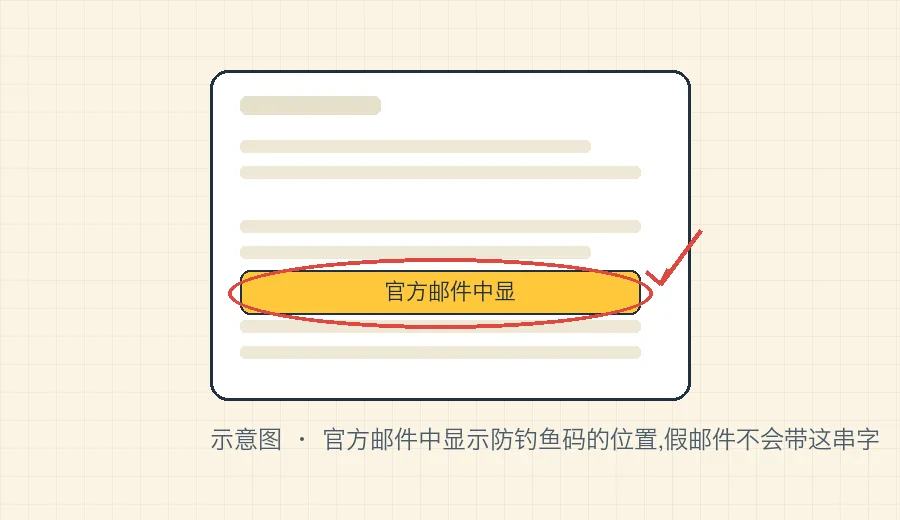
A lot of beginners haven't heard of this one, but it's especially useful. The anti-phishing code is a string you set yourself (say, a phrase or a set of characters). Once set, every official email Binance sends you carries that string; a fake email forged by a scammer can't produce it, because they don't know what you set.
So when you get an "account anomaly" or "please verify" email, glance for your anti-phishing code and you can tell real from fake instantly:
- Carries your anti-phishing code → it's official, trustworthy.
- Doesn't, or carries a different string → it's a phishing email; delete it and don't click any link inside.
Phishing emails are one of the easiest things for beginners to fall for — they're made to look almost exactly real: logo, layout, wording all imitated, and the links disguised to look like the official site. You panic, click through, enter your username and password, and you're hooked. The beauty of the anti-phishing code is that this string is a "secret handshake" between you and the platform, and a scammer can't possibly know it. Set it up, build the habit of checking the handshake on every email, and this whole class of scam is basically kept outside the door.
How to enable it: likewise in "Security" settings, find "Anti-Phishing Code," set a string you'll remember but that isn't too easy to guess, and save. After that, note where this string sits in official emails and build the habit of checking it first.
04Withdrawal whitelist: guard the last gate
The withdrawal whitelist (also called an address whitelist) means: once enabled, your account can only withdraw to addresses you've added and confirmed in advance — withdrawals to unknown addresses can't go through.
This is the last gate against account theft. Picture the worst case — somehow someone gets into your account and wants to move the coins out. If you've enabled the whitelist and their address isn't on the list, they can't withdraw; and typically, after adding a new whitelist address, there's a cooling-off period before you can withdraw to it — long enough for you to notice something's wrong and freeze the account.
Another way to grasp its value: the password, 2FA and anti-phishing code all try every way to keep the bad actor out; the withdrawal whitelist is the fallback line — if the bad actor really does get in, it controls where the money can go. One more layer of backstop means that even if every earlier defense is breached, your assets won't be drained in a few seconds you never saw coming. For an account holding money, this kind of "even if it goes wrong, there's still a buffer" design is exactly what you should proactively add for yourself.
How to use it: in "Security" or withdrawal settings, turn on the "withdrawal address whitelist," and add the few addresses you commonly receive at — your own wallet's, your frequent ones. Route everyday withdrawals through those: fast and safe. If you need to withdraw to a new address temporarily, add it to the whitelist in advance and withdraw once the cooling-off period has passed.
The small inconvenience of "can't withdraw to just any address on a whim" is by design — it trades a little hassle for reaction time if your account is compromised. Once you're used to it, you'll find there really are only a handful of addresses you use regularly, and the whitelist gets in the way not at all.
05A few more quick settings
Beyond the core three, there are a few more that take a minute or two to harden:
- Device / login management — periodically glance at "logged-in devices" and "login history"; remove any device you don't recognize and change your password.
- A unique, strong password — don't reuse your account password from your email or other sites; make it long, mixing upper and lower case, numbers and symbols.
- Enable 2FA on the email itself — your registration email is the "master key" to the account; if it's breached, the door's wide open, so the email should have two-factor verification of its own.
- Withdrawal / trading password (if available) — some security options let you add a separate layer for sensitive actions; enable as needed.
The exact entry points and latest options for these follow what's actually shown on your account's "Security" page and the current notes in the Binance official help center. For a systematic grasp of the general principles of account security, you can also read Investopedia's explainer on two-factor authentication (2FA) — once you understand the principle, you won't set things up blindly.
One more time, the rule that can save you: a legitimate platform will never ask you for your password, your 2FA code, any "secret" beyond the anti-phishing code, or your wallet seed phrase. Every "support needs you to read out your code," "you've won — transfer some coins first to verify," "account frozen, click the link to unfreeze" is a scam, no exceptions. Memorize this and it works better than any security setting — because a lot of account theft isn't a technical break-in at all; it's you being tricked into handing it over yourself. For why the seed phrase is so critical, see what a seed phrase and private key are.
FAQFrequently asked questions
SMS verification and an authenticator app — is just one enough?
Make the authenticator app your primary, since it doesn't depend on the SMS network and is more reliable. SMS can stay as a backup. Whichever you use, back up the authenticator's recovery key offline so you're not locked out when you switch phones.
Could the anti-phishing code be exploited if it leaks?
The anti-phishing code only appears in official emails the platform sends you, to help you confirm an email is genuine. It isn't a password and can't be used to log in or transfer funds. Don't treat it as a secret to hide everywhere, but don't deliberately publish it either — just use it normally.
With a withdrawal whitelist on, what if I need to send to a new address?
Just add the new address to the whitelist. There's usually a cooling-off period after adding before you can withdraw to it. That small friction is by design — it gives you reaction time if your account is compromised. Add it ahead of time if you'll need it urgently.