Where Is Binance's Official Support Entry, and What Should You Prepare Before Contacting It?
You open your history page and that one status line still hasn't moved. You've already worked through everything you could check on your own, and the problem is still there. At this point it's time to reach a human. But the moment you try, a new set of questions shows up: where exactly is the support entry, what do you say first, what should you hand over, and what should you never give anyone. What follows is in the order you'll actually go through it: check whether this needs a human at all, go in through the right entry, gather your details, write it up from the template, and watch the status after you submit. Among the warnings along the way, try not to skip the one about fake support. It turns up precisely when you're anxious and asking around.
01First, check whether this needs a human
Before you reach out, spend a minute checking for yourself. Not to spare support the work, but because what you find is exactly what support will ask you for first.
Open the page for whatever went wrong and read what the status line says:
- Transfers, deposits, withdrawals: open the deposit or withdrawal history in your wallet, find that transaction and tap into it to see the status.
- P2P trades: open your P2P order list, find that order and see which step it's stuck on.
- Fiat deposits and withdrawals to a bank account: open the fiat deposit or withdrawal order history and check the status of that one.
- Identity verification, login, verification codes: open the identity verification page or your security settings and look for a line in red telling you which item didn't pass.
Once you've seen the status, there are three ways this goes:
- The status says something like "Processing" or "Awaiting confirmation". The process is still running. Contact a human now and the answer will most likely be the same "it's still being processed". Wait first.
- The status says failed, rejected or more information needed. There's usually a one-line reason underneath; follow that reason and try to sort it out yourself first. Failed identity verification, an ID document that's already registered to another account, and codes that won't arrive are all common problems with a well-worn fix. Start with what to do when verification fails, what to do when your ID is already in use and what to do when a code doesn't arrive.
- The record isn't there at all. That means, as far as the platform is concerned, this never happened. The problem is somewhere else: maybe on the side you sent from, maybe on your bank's side. Take that conclusion with you when you contact support, and you'll be pointed in the right direction.
Going in with "the history page shows status X and the order number is Y" gets a completely different response from going in with "my money's gone". The first can go straight into investigation; with the second, the whole first round is spent asking you for details, and every back-and-forth is time spent waiting for nothing.
02There are only two entries; nothing else counts
There are only two ways into official support: the official website you type into the address bar yourself, and the official app you installed from your phone's official app store. Every other route doesn't count.
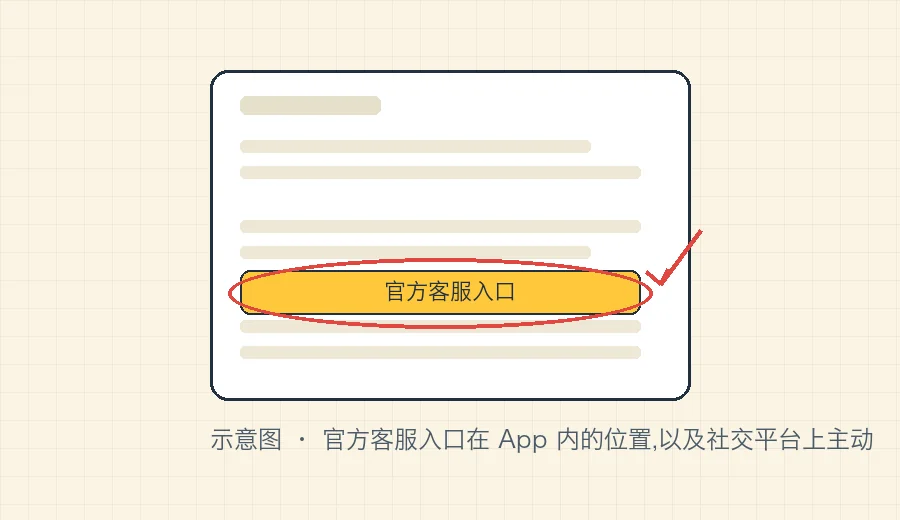
Through the website. Type the official domain (for Binance, binance.com) into the address bar yourself, letter by letter, or use a bookmark you checked in person earlier and saved. Once you're on the site, scroll to the very bottom of the homepage; the block of footer links usually includes something like "Help Center" or "Customer Support". Go in from there.
Through the app. Open the official app that's been on your phone all along and look for a support or help entry on a personal page such as "Me" or your profile. The advantage of going in through the app is that you don't need to remember a web address, so there's no chance of mistyping one letter and landing on a fake site.
Menu positions and names differ between platforms and between versions, and they change often, so go by what the version in your hands actually shows. If you really can't find it, type "support" or "help" into the search box inside the app. Don't search for it outside the app.
Why search results don't count needs spelling out:
- The top few search results may be ad slots. Whoever pays gets the spot, and scammers can pay too.
- A phishing page can copy the official site down to the last detail: colours, layout, buttons, even the little padlock in the address bar. That padlock only means the connection is encrypted; it doesn't mean the site is real.
- So what tells real from fake is never what the page looks like, but the route you took to get there. Right route, right page; wrong route, and however convincing the page looks, it's fake. Keep this logic in mind. It's more reliable than any "spot the fake" trick.
- Links forwarded in group chats, web addresses posted in comments, QR codes sent by direct message, "support channels" in texts and emails: don't tap any of them. If you need to go there, back out and type it in yourself.
What fake official sites and fake apps look like, and how to check a domain letter by letter, is covered in its own guide: how to spot fake exchange apps and phishing sites. When you're not sure, you can also run the situation you're in through the fake app and phishing check.
03Binance support won't reach out through unofficial channels
Remember this one first: Binance states that its support would never proactively reach out to you on unofficial channels. Anyone who shows up unprompted claiming to be support should be treated as a scammer from the start. No need to feel awkward about it.
Specifically:
- Messaging you directly, adding you as a contact first, moving you to a different chat app to talk privately, commenting under your help post telling you to contact some account: all of these are unprompted contact on unofficial channels.
- In the Binance Help Center's own words, anyone calling you by phone and claiming to be from Binance is a scammer; Binance support is only offered on its official website.
- For any URL, email address, phone number, Telegram or social media account they send you, first check on Binance Verify whether it's official. Binance also says it will never request funds or tokens via private communications.
A typical scenario goes like this: you post a request for help online, and a direct message arrives straight away. That isn't support responding to your call. It's someone watching for keywords and trawling for targets. They know someone who has just posted is anxious, and anxious people are the easiest to fool.
Another version is more convincing: from the first message, they can name details of your account and describe your most recent transaction. Don't let that throw you. The information may come straight from your own help post (the screenshots you shared often show everything), or from data leaked somewhere else. Knowing things about you doesn't make them official.
A word of warning: when you ask for help in a public place, don't post your UID, order numbers, phone number, email, or any account details visible in your screenshots. Those are for your official ticket. Posting them publicly hands the material straight to the people trawling.
If any one of these three applies, end the conversation. No need to weigh it further: one, they came to you; two, they're pushing you to "act now or your account will be frozen"; three, they want to move the conversation to another app. Real support is waiting inside the entry you walk into yourself. It has no reason to come looking for you.
04Before you go in, gather these
Before you say anything, copy the items below into a note on your phone. Almost every ticket asks for them, and having them ready in one go saves several rounds of back-and-forth.
- The email or phone number you registered with. Contact support using the email or phone number of the account that has the problem. Don't have a family member or friend ask on their account for you: if the person doesn't match, your identity can't be verified.
- Your UID. It's a string of digits the platform assigns to each account to identify who you are. It's usually next to your avatar on your profile page in the app, and one tap copies it. The UID isn't a password; giving it to official support is normal, so don't worry about it.
- The reference number for the transaction that went wrong. There are two kinds, so don't mix them up:
The order number is the platform's internal number for each trade, deposit, withdrawal or P2P order. Open that entry in the relevant history list and it's shown there, usually with a copy button next to it.
The TxID, also called the transaction hash, is the blockchain's identifier for an on-chain transfer, a long string of letters and digits. Open the transfer in your withdrawal or deposit history and you can usually copy it directly. For any problem involving an on-chain transfer, this string is the single most important piece of evidence. For how chains and addresses match up, see how to choose between TRC20, ERC20 and BEP20. - When it happened. Which day, and roughly what time. While you're at it, note which time zone you mean: the time zone shown in the platform's records may not match what your phone shows, and making it clear saves a round of confirmation.
- What you've already tried. Logged out and back in, checked a block explorer, retried on a different network, resubmitted documents as prompted: list what you've done so you aren't asked to do the same things again.
- Relevant screenshots, kept for yourself first. Screenshot the history page, the status message and any error message, and keep them on your own phone. Note the for yourself part: upload them only when the official ticket asks for them, and don't send them to anyone who contacts you privately.
Look back over those six items: not one of them is a password, a verification code or a seed phrase. Everything you're asked to provide is a reference that pinpoints what happened, not a key that can move your money. Keep those two kinds of thing apart, and the line drawn in section 06 is easy to hold.
05Copy this: how to write up the problem
A usable problem description only needs four things: what you're seeing, when it happened, what you've already tried, and what you want. Fill in the lines below and paste the result straight in.
- Problem: [one sentence on what you're seeing, with no emotion and no guesses]
- When it happened: [which day, roughly what time, and your time zone]
- Account: [registered email or phone number] [UID]
- Reference number: [the order number, or the TxID of the on-chain transfer]
- What I've already tried: [list what you've checked and done yourself]
- What I'd like: [what you want them to do for you, or what you want to find out]
Filled in, it looks roughly like this (swap in your own details):
- Problem: I sent USDT from another wallet to my deposit address. The on-chain record shows the transfer succeeded, but my account balance hasn't changed.
- When it happened: yesterday evening (state your own time zone here).
- Account: registered email (fill in your own), UID (fill in the digits you copied).
- Reference number: the TxID of this transfer (paste the long string you copied here).
- What I've already tried: checked my deposit history and couldn't find this transaction; logged out, logged back in and refreshed.
- What I'd like: please check which step this transfer is stuck at, and whether I need to provide anything else.
When you write it, avoid three things:
- Emotion instead of facts. "My money's gone, sort it out now." After reading that, they don't know which transaction or which day you mean, so they have to come back with a list of questions, and a whole round is wasted.
- Several issues in one go. One ticket, one issue. Open a separate ticket for anything else; don't mix them, because when they're mixed, half of it gets missed.
- Guesses written as facts. "You froze my account." What you're seeing may just be one feature that isn't working. Write down exactly what that line on your screen says, not the cause you've inferred.
Before submitting, read it through once and ask yourself: could someone who doesn't know me and can't see my screen find my transaction using only this text? If yes, send it. If not, you're still missing a reference number or a time.
06Never hand these over, no matter who asks
Official support will never ask you for any of the following. Don't give them to anyone who asks, whatever channel they turn up in, however official they look and however reasonable they sound.
- Seed phrase, private key. These two are ownership of your wallet's assets itself. Handing them over is the same as giving the whole wallet away, and once funds are moved on-chain they can't be reversed or recovered. What these two terms mean and why they matter so much has its own guide: what a seed phrase and a private key actually are.
- Your account password. Official support confirms it's really you through the verification steps in your account. It doesn't need your password.
- Verification codes from SMS, email or an authenticator. The whole point of that string of digits is to stop someone pretending to be you. Reading it out is opening the door yourself. Even if they say "it's just a check, I won't touch your money", the answer is no.
- Screen sharing, remote assistance. Getting you to install software that can see your screen, or to start a share so they can "walk you through it", is a common step in a scam, because they can then see everything you type, including that verification code.
- Any version of "send some money first to fix this". Security deposit, unfreezing fee, verification payment, handling fee, tax: the labels keep changing, the trick is always the same. Official support will never ask you to transfer money to them before it helps you with a problem.
One thing is easy to confuse, so it gets its own note: uploading a photo of your ID for identity verification is a normal step, but only inside the official app or website you walked into yourself, through the verification flow. Sending a photo of your ID to someone who messaged you, posting it in a group, or uploading it through a link someone else gave you is not normal, and the answer is always no. The same photo means something completely different depending on where you submit it.
The bottom line of this section is one sentence: anyone who asks you to hand over a key, or to send money first, is running a scam, whoever they claim to be. You can simply not reply. You don't owe an explanation, and you don't need to worry "what if they're genuine": genuine support doesn't ask for these things. To practise your reaction once more, run through the fake app and phishing check; for hardening your account, see the security settings to do after sign-up.
07After you submit: watch the status, add details
Once you've submitted, you'll have a ticket. A ticket is the record of this request for help. The platform gives it a number, and every reply after that is attached to the same record, so nothing gets scattered.
Then do this:
- Save the ticket number, together with the note you made earlier.
- Check progress through the same entry. Go back through the same support entry on the website or in the app; there's usually a list along the lines of "My tickets". Open that ticket and check its status. The name varies between versions, so go by the version you have.
- Replies show up in two places: on the ticket page, and in the email account you registered with. Check your spam folder while you're at it; replies can land there.
- Add information only when the status asks for it. Provide exactly the item it names, rather than sending all your details again. If something new happens in the meantime (say the money arrives, or it happens again), add a line about it in the same ticket.
- How long is too long? Don't wait by a fixed number of hours; go by the status shown on the ticket page. If the status is still moving, keep waiting; if it has stopped at a step that needs action from you, it's waiting for you.
While you wait, don't do these three things:
- Don't open duplicate tickets. Opening several in a hurry spreads the information across several records, and handling actually gets slower.
- Don't post your ticket number on a public platform to chase progress. That hands material to the people trawling, and a "specialist" will be in your messages before long.
- Don't let anyone take over by direct message. The whole process, start to finish, stays inside the entry you walked into yourself. It won't jump to a different app halfway through.
While you wait, don't delete anything you'll need as evidence: screenshots of history pages, emails and text notifications from the platform, transfer receipts. Keep all of it exactly as it is. If this later has to go to your bank or to the police, these are the only things you'll have to show.
08Triage: who should handle your problem
Not every problem is support's to handle. Match yours to the right place first, then act, and you'll save yourself detours.
One: problems with the account itself go to platform support. Can't log in, identity verification failing, an ID document already registered to another account, codes not arriving, account features restricted, an order status that doesn't add up, a P2P order that needs an appeal, internal transfer records that look wrong: official support is the right route for all of these. The matching common problems: verification failing, ID already in use, code not arriving, and avoiding tainted funds and a frozen account in P2P trades.
Two: if the money is already on-chain, check the chain yourself first. Once an on-chain transfer is confirmed, it's written into the blockchain for good; the platform can't change it or reverse it. For these, first take the TxID to the block explorer for that chain and see where the transfer actually got to: still confirming, already in the correct address, or sent somewhere else. Then decide whether to open a ticket. How to check is covered in these two guides: how to trace a deposit that hasn't arrived and how to trace a withdrawal that hasn't arrived.
Three: if the money is stuck on the fiat side, go to your bank. A card deposit that has been charged but never arrived, a withdrawal to your account that's taking forever, a card restricted from transactions: this stretch isn't entirely in the platform's hands, and it may be held up with the payment provider or the card issuer. The people to contact are your bank's customer service, and the number is printed on the back of your card. Call the number on the back; don't search for a number online (fake support numbers in search results are a scam of their own). For how the cash-out route works, see how to turn USDT back into cash.
Four: if you've been scammed or robbed, go to the police first. Money sent to someone posing as support, assets moved out after your seed phrase leaked, being talked into approving something you didn't understand, your bank account frozen because it received funds linked to a crime: in cases like these, report it to the police first and preserve the evidence: transfer records, chat logs, the other party's account details, related screenshots. Don't delete any of it. At the same time as you report it, explain the situation in a platform ticket as well. This part only covers the order of steps and isn't legal advice; how it's handled is up to your local police.
If you really can't tell which category it falls into, one question decides it: where did the last step of this happen? Inside the platform, go to the platform; on-chain, check the chain first; at the bank, go to the bank; in a scammer's hands, go to the police. To run through the common traps in one go, see the 8 pitfalls beginners hit most.
FAQFrequently asked questions
Where exactly is the official support entry, and do search results count?
Only two entries count: the official website whose address you type into the address bar yourself, letter by letter, and the app you installed from your phone's official app store. On the website, scroll to the very bottom of the homepage and the footer has a help center or support link; in the app it's usually under a personal page such as "Me" or your profile. The exact spot varies slightly between versions, so go by the version in front of you. Search results, social media accounts and links forwarded in group chats don't count: a fake page can look identical to the real site, you can't tell them apart by eye, and the only thing that tells them apart is the route you took to get there.
What are the UID, the order number and the TxID, and where do I find them?
The UID is a string of digits the platform assigns to your account to identify you. You'll see it near your avatar on your profile page in the app, and tapping it usually copies it; it isn't a password, and giving it to official support is normal. The order number is the platform's number for each trade, deposit or withdrawal record; open that entry in the relevant history list and it's shown there. The TxID, also called the transaction hash, is the blockchain's identifier for an on-chain transfer, a long string of letters and digits; open the transfer in your withdrawal or deposit history and you can copy it.
Someone messaged me first saying they're support. Can I trust them?
No. Binance states that its support would never proactively reach out to you on unofficial channels; messaging you first, adding you as a contact, pulling you into a different chat app, or commenting under your help post telling you to contact some account all fall into that. If you're unsure, check the account on Binance Verify. Real communication only happens inside the official entry you walked into yourself. If a DM arrives right after you post a request for help online, that's someone trawling for keywords, not support.
How long after submitting will I get a reply?
Don't wait by a fixed number of hours; different kinds of issues, and different times, move at different speeds anyway. Go by the status shown on the ticket page: if it's still being processed, keep waiting; if it says you need to provide more information, add exactly what it asks for. And don't open several new tickets out of impatience: with the information split across several tickets, things actually go slower.
Support is asking for a photo of my ID. Is that normal?
It depends on where you're submitting it. Uploading your document through the identity verification flow inside the official app or website you walked into yourself is normal. Sending a photo of your ID to someone who messaged you, posting it in a group, or uploading it through a link someone else gave you is not normal; refuse, every time. The same photo means something completely different depending on where you submit it.
Which problems can't be solved even if I contact support?
A transfer that has already been confirmed on-chain can't be changed or reversed by the platform, and that includes sending coins to the wrong address; assets moved out after your own seed phrase or private key leaked can't be recovered either. In cases like these, what support can usually do is confirm what happened and explain the rules. That's why the order is always: prevent first, check for yourself next, and only then contact a human.